Setting up your company profile
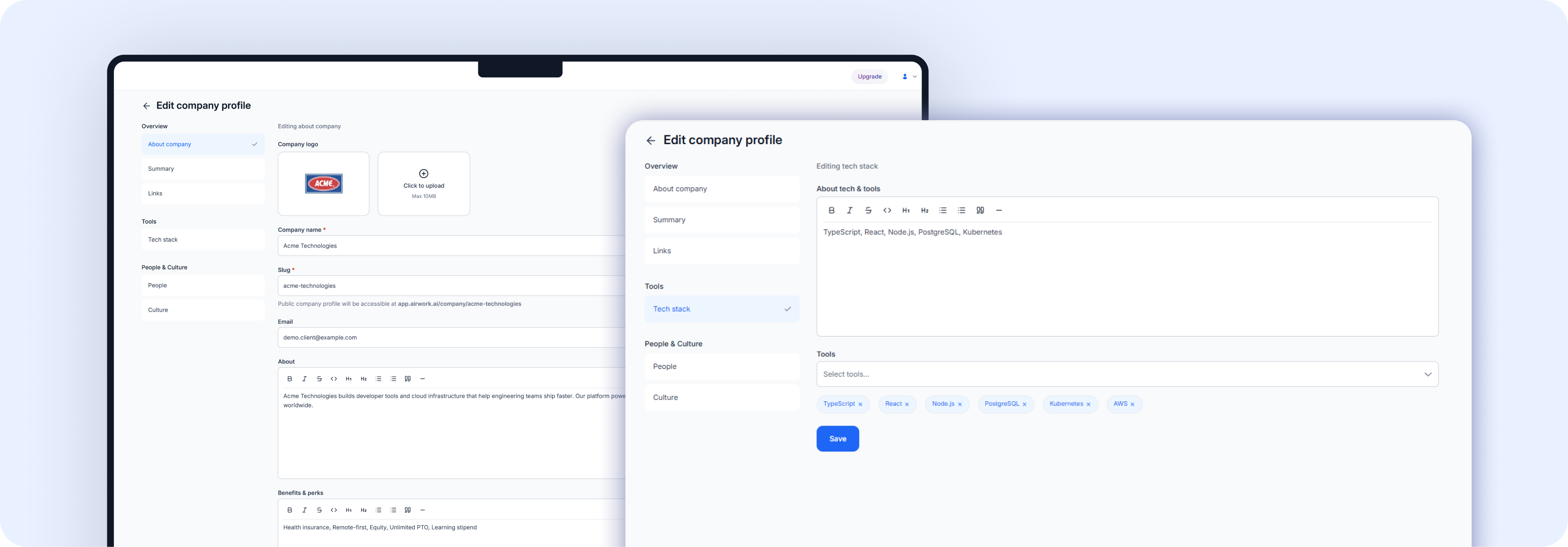 Your company profile is what candidates see when deciding whether to apply. A complete, compelling profile significantly improves your application quality.
Go to Company in the sidebar to view your profile. Click Edit company profile in the top-right to make changes.
Overview tab
About section: Write a compelling description of your company — who you are, what you do, and why candidates should want to work with you.
Benefits & perks: List what you offer employees, e.g., Remote work, Higher salary, Flexible timing, Health insurance, Equity, Learning budget.
Company summary sidebar: Auto-populated from your profile settings — includes company name and logo, website URL, industry, company size, founded year, and HQ location.
Tech Stack tab
Displays the technologies your company uses (e.g., React, Node.js, Python, AWS). This helps attract candidates who are excited about your stack.
To add your tech stack:
- Click Edit company profile
- Navigate to the Tech Stack section
- Add your technologies
People & Culture tab
- Life at [Company] — Describe your work culture, values, team rituals, or what makes your workplace unique
- Team members — Add team members who will be visible to candidates, helping them put faces to the company
Tip: Companies with all three tabs filled in typically receive higher-quality applications. Candidates want to know who they'll be working with and what the culture is like.