Managing your jobs
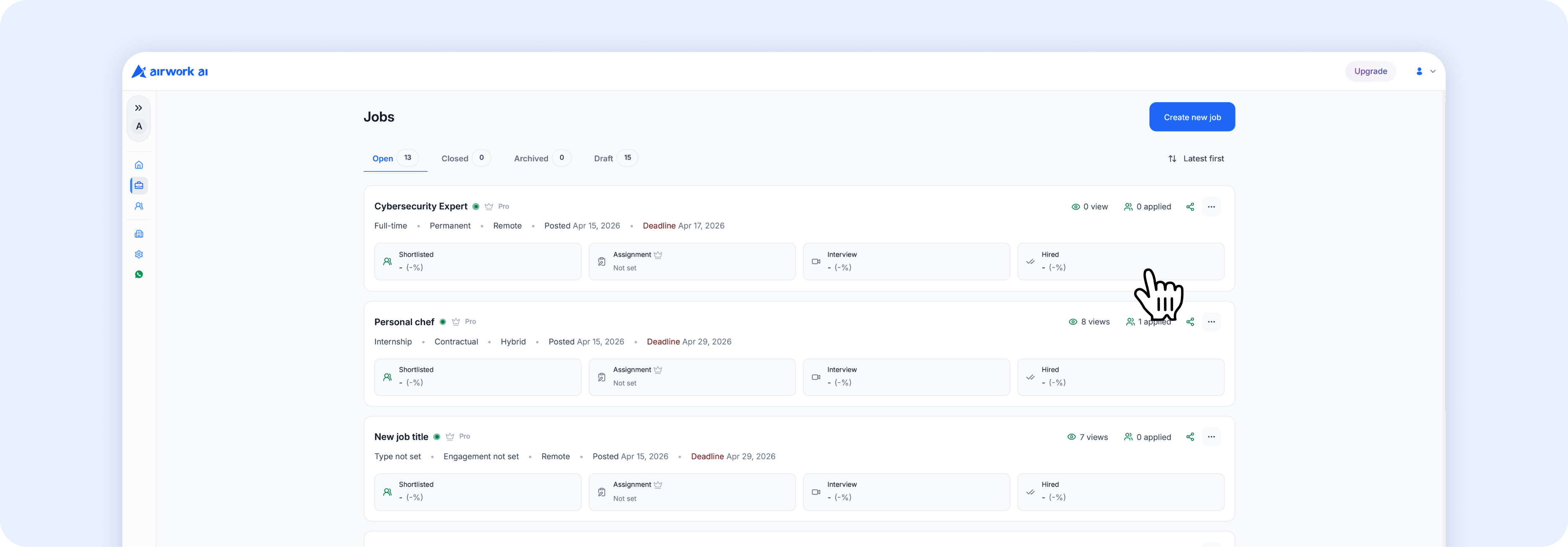 Go to Jobs in the sidebar to see all your job postings, organized by status.
| Understanding job statuses | Status | What it means |
|---|---|---|
| Open | Published and actively accepting applicants. Shows a green dot. | |
| Closed | No longer accepting applications. Existing applicants are still visible. | |
| Archived | Removed from active view. Can be restored if needed. | |
| Draft | Not yet published. Still being edited. Auto-saved progress. |
Editing a published job
- Go to Jobs in the sidebar
- Find the job you want to edit
- Click the three-dot menu (⋯) on the job card
- Select Edit job
- Make your changes and save
Note: Some fields (like screening questions) cannot be changed after candidates have started applying.
Sharing a job post
- Go to Jobs in the sidebar
- Click the share icon on the job card, or open the three-dot menu and select Copy public link
- Share the link via email, social media, Slack, or anywhere you want to attract candidates
Closing or archiving a job
- Go to Jobs in the sidebar
- Click the three-dot menu (⋯) on the job card
- Select Close job
- The job moves to the Closed tab and stops accepting new applications
Closed jobs retain all applicant data — you can still review candidates and manage your pipeline.
Resuming a draft
- Go to Jobs in the sidebar
- Click the Draft tab
- Click on any draft job card
- You'll be taken back to the job creation wizard where you left off