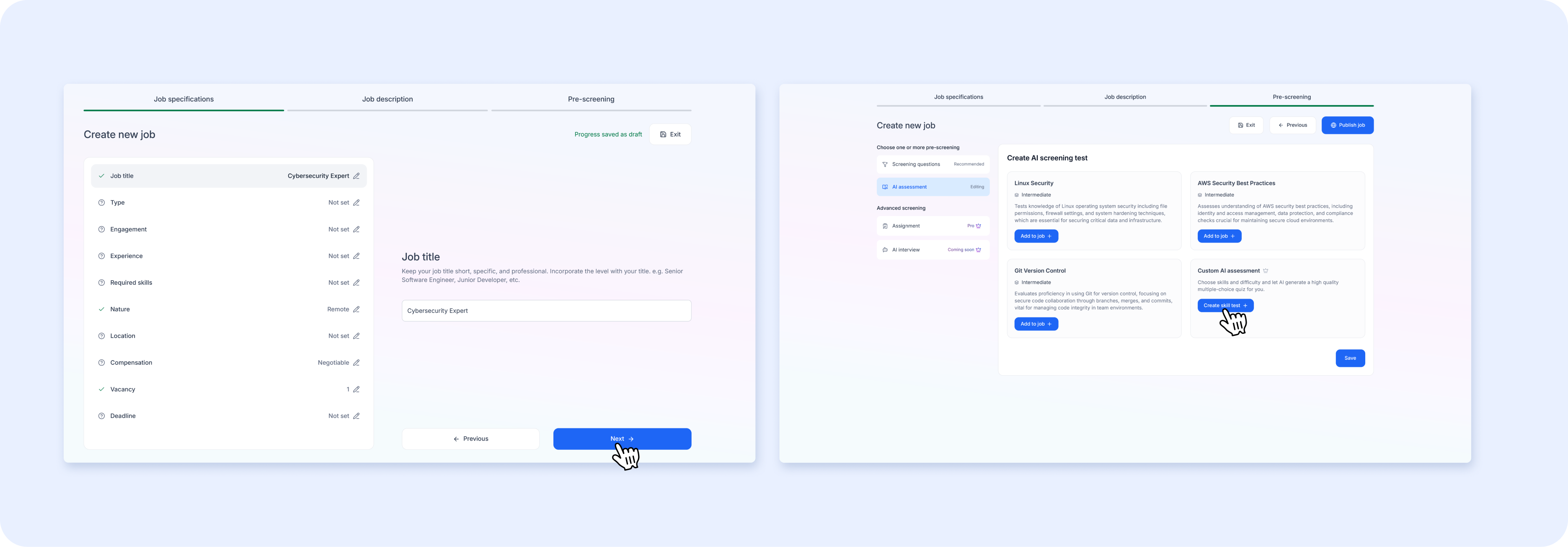
How to post a job on Airwork
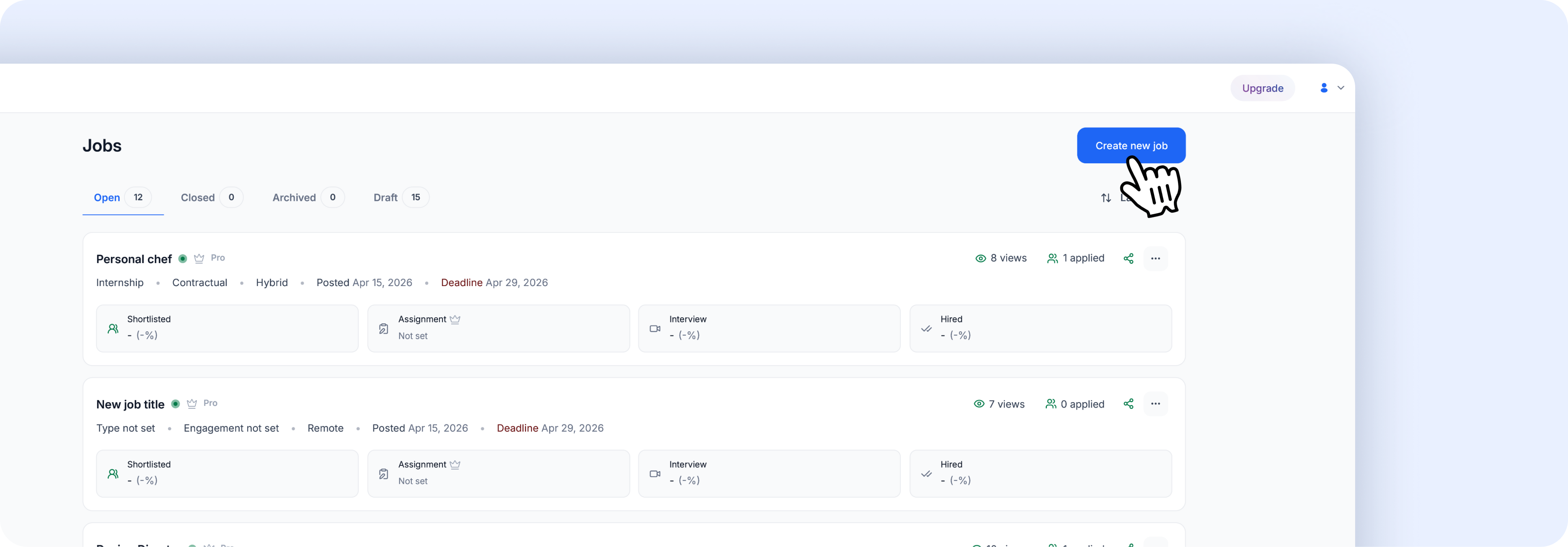 Posting a job takes just a few minutes through a 3-step wizard.
Before you start
Make sure you've set up your Company Profile (go to Company in the sidebar). A complete company profile helps attract better candidates.
How to start
- From the Home screen: Click "Post a job" below the Aria search bar
- From the Jobs page: Click the red "Create new job" button in the top-right corner
Both take you to the same 3-step wizard.
Step 1: Job specifications
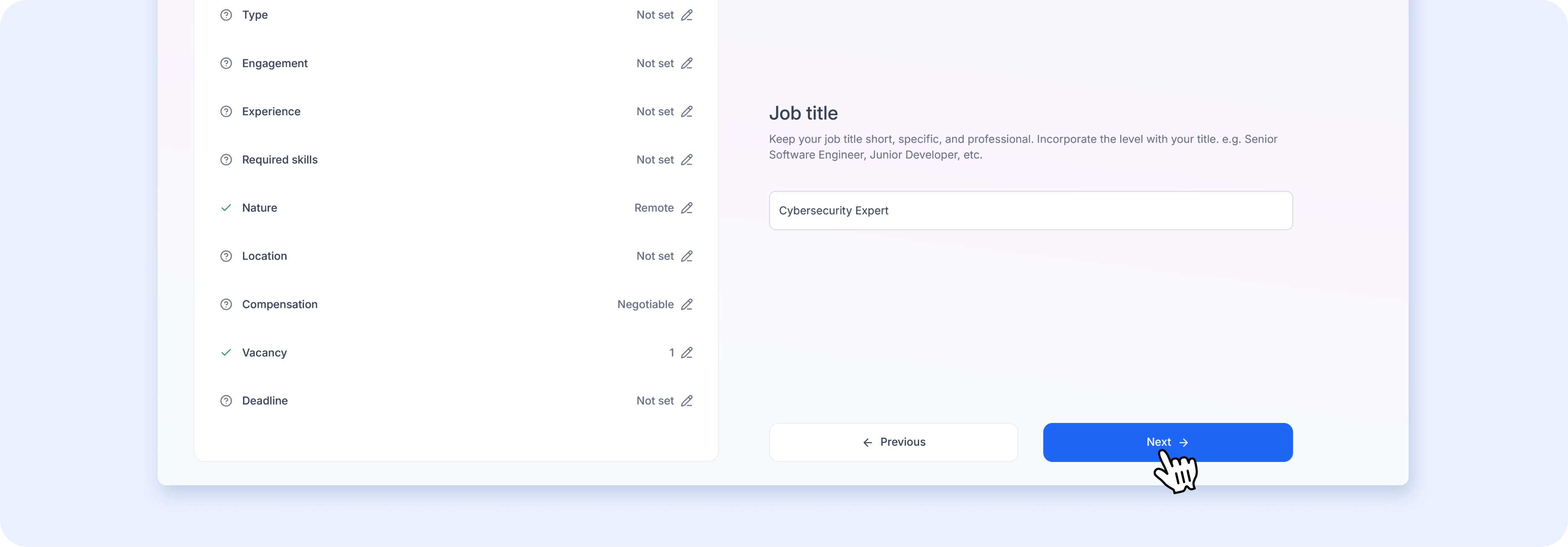
This is the first screen of the wizard. Clicking any field opens its editor on the right side. Fields show a checkmark when completed and a question mark when not yet filled.
| Field | What to enter | Required? |
|---|---|---|
| Job title | Keep it short and specific. Include the level, e.g., "Senior Software Engineer" or "Junior Marketing Manager" | Yes |
| Type | Permanent or Temporary | Yes |
| Engagement | Full-time, Part-time, or Contract | Yes |
| Experience | Required experience range (e.g., "2 to 4 years") | Yes |
| Required skills | Add relevant skills candidates should have (e.g., React, Node.js, Python) | Yes |
| Nature | Remote, Hybrid, or On-site (defaults to Remote) | Yes |
| Location | Where the role is based — important even for remote roles (e.g., "Dhaka, Bangladesh") | Yes |
| Compensation | Salary range or "Negotiable" | Yes |
| Vacancy | Number of open positions (defaults to 1) | Yes |
| Deadline | Application closing date | Yes |
Tip: The more detail you fill in here, the better Airwork's AI can auto-generate your job description and screening assessments in the next steps.
Your progress is automatically saved as a draft, so you can leave and come back anytime from Jobs → Draft tab.
Click Next when done.
Step 2: Job description
You'll see a rich text editor where you can write or paste your job description. The editor supports bold, italic, strikethrough, headings, bullet and numbered lists, code blocks, block quotes, and horizontal dividers.
Tip: If you filled in all the job specifications in Step 1, Airwork's AI can generate a job description for you automatically. Look for the prompt at the top of the editor.
The description has a 15,000 character limit.
Writing tips:
- Be specific about what the role actually does — focus on day-to-day responsibilities, tools, and problems they'll solve
- Set clear expectations upfront — include scope, work arrangement, and what success looks like in the first 90 days
- Show why this role matters — connect tasks to impact, not just duties
Click Continue to Pre-screening when done.
Step 3: Pre-screening
Pre-screening helps you filter and evaluate applicants before they enter your pipeline. You can mix and match multiple screening tools from the left panel.
See the related articles for detailed setup guides on Screening Questions, AI Assessments, and Assignments.
Publishing your job
When all three steps are complete:
- Click the blue "Publish job" button in the top-right corner
- Your job goes live immediately and starts appearing to candidates
You can also click Exit to save as a draft and publish later, or click Previous to go back and make changes.